
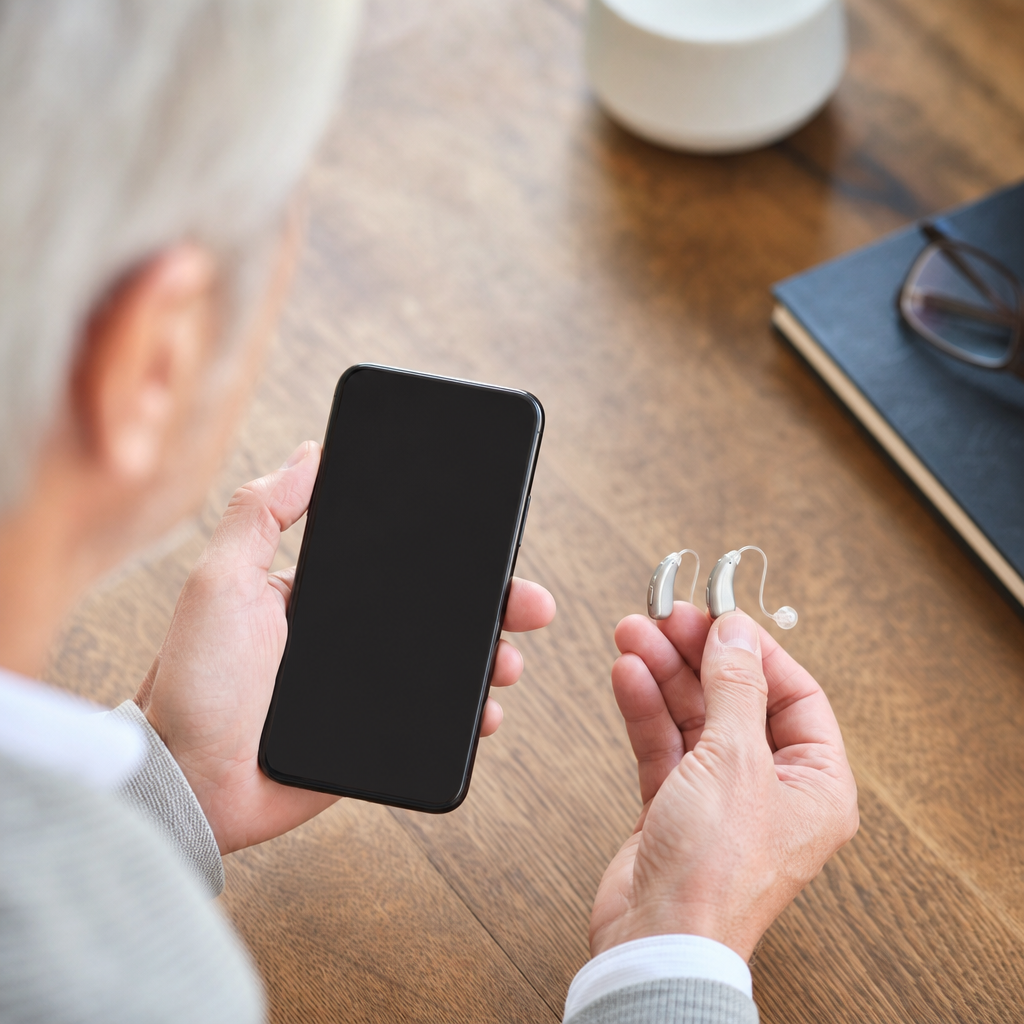
Connecting hearing aids to an iPhone is straightforward once you know which type of device you own, which iPhone settings matter, and how Apple’s hearing accessibility features work together. In practical terms, “connecting hearing aids to iPhone” can mean three different things: pairing Made for iPhone hearing aids directly through Accessibility settings, pairing Bluetooth LE Audio or ASHA-style devices through a companion app and Bluetooth menu, or using an intermediary streamer that relays sound from the phone to older hearing aids. That distinction matters because setup steps, call handling, streaming quality, battery use, and troubleshooting all depend on the connection method. I’ve helped patients and family members through all three scenarios, and the biggest source of confusion is assuming every hearing aid pairs like standard earbuds. They do not. Hearing aids are medical devices with stricter fitting software, dedicated radio protocols, and volume controls that often interact with your audiologist’s programming. Once connected properly, an iPhone can stream calls, music, podcasts, Siri responses, and system sounds, while also letting you adjust volume, microphone routing, and accessibility shortcuts from one place.
This matters because iPhone compatibility changes how useful hearing aids feel in daily life. A secure connection can make phone conversations clearer, reduce the need to hold the phone awkwardly, and improve speech understanding in noisy places when using features such as Live Listen. It also supports safer communication by sending alerts, FaceTime audio, and emergency calls directly to your ears. Apple’s ecosystem has long supported direct hearing aid integration, and major manufacturers such as ReSound, Oticon, Phonak, Signia, Starkey, Widex, and Jabra offer models with varying levels of compatibility. However, not every model supports every iPhone feature, and not every iPhone runs the same version of iOS. This hub article explains the full picture: what you need before pairing, how to connect different hearing aid types, what settings improve performance, common problems and fixes, and when to involve your audiologist or hearing aid manufacturer. If you want one reliable starting point for hearing aids and iPhone setup, this is it.
Check compatibility before you try to pair
The first step is to confirm exactly what hearing aids you have and how they are designed to connect. Look for the brand and model name inside the battery door, on the charging case, in the companion app, or on your audiology paperwork. Then verify whether the devices are Made for iPhone, Bluetooth Classic, Bluetooth Low Energy, or dependent on a streamer accessory. Apple maintains a hearing device compatibility list, and manufacturers publish model-specific instructions because firmware versions can affect pairing behavior. In clinic, I always check three basics before touching the phone: iPhone model, iOS version, and hearing aid firmware. An older iPhone may still support direct pairing, but newer features like hands-free calling, LE Audio enhancements, or easier background reconnection may not work the same way.
Also confirm whether your hearing aids are already paired to another phone or tablet. Many modern devices remember prior connections, and that can block a clean setup. Rechargeable hearing aids should be above 50 percent battery before pairing. Disposable-battery models should have fresh cells installed. If your audiologist enabled airplane-safe mode, tap control lock, or app restrictions, ask whether those settings could affect streaming. Finally, update the iPhone to the latest stable iOS version available for the device. Apple often fixes Bluetooth and accessibility bugs in routine updates, and hearing aid makers do the same through firmware updates delivered in their apps or in-office programming tools like Noahlink Wireless and manufacturer fitting software.
How to connect Made for iPhone hearing aids
Made for iPhone hearing aids are the easiest category to connect because Apple built a dedicated pathway inside Accessibility. Start by turning Bluetooth on under Settings. Then open Settings, tap Accessibility, tap Hearing Devices, and open and close the battery doors on battery-powered aids or place rechargeable aids in the charger and remove them to restart them. The iPhone should detect the devices within several seconds. When their name appears, tap it, then approve the pairing request. If you wear two hearing aids, you may see two requests; approve both. After pairing, the iPhone shows battery levels, basic controls, and a direct audio route for calls and media.
Once paired, triple-clicking the side button can often bring up hearing controls if Accessibility Shortcut is configured for Hearing Devices. You can adjust left and right volume separately, select presets created by your audiologist, and enable Live Listen on supported combinations. In real use, this setup is noticeably different from earbuds. The hearing aid microphones remain part of your fitted prescription, so streamed audio blends with environmental sound according to your audiologist’s programming. That is why one patient may love direct iPhone streaming for calls but find music thin compared with headphones; hearing aids prioritize speech clarity, not hi-fi bass response. If you need richer audio for entertainment, ask whether your model supports a dedicated music program with wider frequency response and reduced noise management.
How to connect Bluetooth hearing aids that use an app or streamer
Not every hearing aid connects through the Hearing Devices menu. Some Phonak models, for example, pair more like Bluetooth headsets through Settings > Bluetooth, while others use a manufacturer app to complete setup and permissions. In those cases, first download the official app from the App Store, such as myPhonak, Oticon Companion, Signia app, Thrive Hearing Control, Widex Moment, ReSound Smart 3D, or Jabra Enhance Pro. Follow the brand’s sequence exactly. With some devices, you first pair through Bluetooth settings. With others, the app discovers the aids and then prompts a system pairing request. If the manufacturer recommends location permissions or background app refresh, enable them, because those settings can support stable discovery and remote support features.
Older or less compatible hearing aids may require a streamer accessory worn around the neck or clipped to clothing. These streamers act as a bridge between the iPhone and the hearing aids, often using Bluetooth from the phone and a proprietary near-field signal to the aids. The setup is less elegant, but it remains useful for legacy devices and for users who want physical call buttons. Streamers can also reduce some pairing complexity in multisource environments like offices where users switch between desk phones, laptops, and mobile devices. The tradeoff is one more device to charge and carry. If you rely on a streamer, label it, keep its firmware updated, and learn the indicator lights. Many support call answer, mute, and media controls that users never realize are available.
Core iPhone settings that improve hearing aid performance
After the initial connection, optimize the iPhone so the hearing aids perform consistently. These settings matter most:
| Setting | Where to find it | Why it matters |
|---|---|---|
| Hearing Devices | Settings > Accessibility | Shows pairing status, battery levels, routing, and Live Listen controls for supported aids. |
| Bluetooth | Settings > Bluetooth | Required for discovery, reconnection, and app-based hearing aid links. |
| Audio Routing | Accessibility or brand app, model dependent | Determines whether calls and media stream to hearing aids automatically. |
| Accessibility Shortcut | Settings > Accessibility > Shortcut | Provides quick access to hearing controls from the side button. |
| Microphone Mode and Live Listen | Control Center or Hearing controls | Can improve speech pickup in meetings, cars, and restaurants. |
| Background App Refresh | Settings > General | Helps some manufacturer apps maintain reliable remote controls. |
Also review Notifications, Sounds & Haptics, and Emergency SOS behavior. Some users want every alert streamed; others find constant notification chimes distracting or fatiguing. In practice, the right setup depends on hearing loss pattern, lifestyle, and listening tolerance. I usually recommend starting with calls and key apps first, then adding more alerts only if the user benefits from them.
Streaming calls, media, and using accessibility features
Once connected, the most immediate benefit is phone call streaming. For many users, voices become more centered and less effortful because sound arrives in both ears at a stable level without room echo. FaceTime Audio often sounds cleaner than speakerphone in noisy places, and many hearing aid users prefer it for family calls. Media streaming includes podcasts, audiobooks, music, navigation prompts, and videos. Keep expectations realistic: hearing aids are tuned for speech intelligibility. Feedback management, compression, and small receivers can limit music fidelity. That does not mean streaming is poor; it means spoken content typically sounds better than bass-heavy entertainment.
Accessibility features add practical value beyond simple pairing. Live Listen turns the iPhone into a remote microphone, sending the phone’s microphone signal to supported hearing aids. In a restaurant, placing the phone closer to the person across from you can improve speech pickup. Headphone Accommodations may help in some audio scenarios, though support varies by device class. Mono Audio, balance adjustments, captions, and Siri integration can further reduce listening effort. If you attend lectures, religious services, or public events, ask whether the venue has hearing loop, FM, or Bluetooth assistive systems. Your hearing aids may support telecoil or compatible accessories that work alongside the iPhone rather than replacing it.
Troubleshooting pairing and connection problems
If hearing aids will not connect to an iPhone, start with a full restart sequence. Turn Bluetooth off and back on. Restart the iPhone. Power-cycle the hearing aids by opening and closing the battery doors or reseating them in the charger. Move away from crowded wireless environments. Then try pairing again using the method required by your brand. If the hearing aids appear but fail to connect, remove or forget the prior pairing when possible, then repeat the process. On Made for iPhone devices, I often clear stale pairings from Accessibility > Hearing Devices before retrying. On app-based devices, deleting and reinstalling the app can reset permissions that quietly broke discovery.
Intermittent streaming usually comes down to low battery, outdated firmware, one hearing aid losing synchronization with the other, or the phone trying to maintain too many Bluetooth relationships at once. Smartwatches, car systems, and earbuds can all compete for audio focus. If only one side streams, the pair may need to be re-linked in the manufacturer app or reprogrammed by the audiologist. If calls stream but media does not, check routing preferences and app-specific audio outputs. If nothing helps, involve the clinic. Audiologists can confirm receiver function, microphone status, firmware versions, and fitting settings, and manufacturers can identify known compatibility issues tied to a specific iOS release.
When to call your audiologist and how this hub connects to related topics
You should contact your audiologist when pairing repeatedly fails, sound quality changes suddenly, one aid drains battery unusually fast, or the hearing aids connect but speech still sounds distorted. Those are not always phone problems. They can indicate blocked wax guards, weak receivers, moisture damage, incorrect domes, outdated fittings, or hearing changes that require verification with real-ear measurements. Remote support is increasingly common, and many brand apps allow fine-tuning adjustments without an office visit, but there are limits. Connection stability can be improved in software, while physical fit, feedback, and ear canal acoustics still need hands-on assessment.
As a hub page under Hearing Aids, this article covers the general process for connecting hearing aids to iPhone, but related topics deserve their own detailed guides: connecting specific brands, fixing one-sided audio, pairing after getting a new iPhone, streaming TV audio through accessories, using Live Listen effectively, managing battery drain, cleaning microphones and receivers, and comparing iPhone versus Android compatibility. If you are building a reliable everyday setup, think of this as the foundation. Start by identifying your hearing aid type, follow the right pairing path, optimize iPhone accessibility settings, and troubleshoot methodically instead of guessing. A properly connected system saves effort every day, makes calls clearer, and helps you get more value from hearing aids you already own. If your setup is inconsistent, review your model compatibility today and book a hearing aid check if needed.
Frequently Asked Questions
How do I connect my hearing aids to an iPhone for the first time?
Start by identifying what kind of hearing aids you have, because the setup process depends on the technology built into the devices. If your hearing aids are Made for iPhone, you usually pair them through your iPhone’s Accessibility settings rather than the standard Bluetooth screen. On your iPhone, go to Settings, then Accessibility, then Hearing Devices. Make sure Bluetooth is turned on first. Open and close the battery doors on the hearing aids, or place rechargeable models in and out of the charger to put them into pairing mode. Your iPhone should detect them within a few seconds. Tap the name of the hearing aids when it appears, then accept the pairing prompt. If you have two hearing aids, you may see multiple prompts, and that is normal.
If your hearing aids use Bluetooth LE Audio, ASHA-style connectivity through a companion app, or another manufacturer-specific method, the process may involve downloading the brand’s app first and following its in-app instructions. In some cases, you pair through Settings > Bluetooth, while in others the app handles discovery and setup. If your hearing aids rely on a streamer or accessory, you will pair the streamer to the iPhone instead of the hearing aids themselves. Once connected, test audio by playing music, making a phone call, or adjusting volume through the hearing control panel. The key is to use the pairing method recommended by the manufacturer, because not all hearing aids connect to iPhone in exactly the same way.
Why are my hearing aids not showing up on my iPhone?
If your hearing aids are not appearing on your iPhone, the most common reasons are that they are not in pairing mode, Bluetooth is off, the hearing aids are already connected to another device, or the wrong setup menu is being used. Made for iPhone hearing aids often will not appear in the regular Bluetooth device list the way headphones do, so checking only Settings > Bluetooth can be misleading. Instead, go to Settings > Accessibility > Hearing Devices and wait there for detection. Before doing that, restart Bluetooth on the iPhone, confirm the hearing aids have enough battery power, and cycle the hearing aids off and back on to trigger pairing mode again.
It also helps to move the hearing aids close to the iPhone and make sure they are not actively connected to an iPad, another phone, or a companion app on a different device. If they were previously paired, you may need to forget the old connection and start fresh. On the iPhone, remove old device entries if available, restart the phone, and then repeat the pairing process. If nothing works, check whether your hearing aids actually support direct iPhone connection, because some models require a separate streamer or manufacturer app. Firmware compatibility can also matter, so updating iOS and the hearing aid app can resolve stubborn connection problems.
What is the difference between Made for iPhone hearing aids, Bluetooth hearing aids, and streamer-based connections?
These terms describe three different ways hearing aids can communicate with an iPhone. Made for iPhone hearing aids are designed specifically to work with Apple’s hearing accessibility system. They usually connect directly through the Accessibility > Hearing Devices menu and support streamlined features such as direct audio streaming, call routing, and quick access to controls. This is often the simplest and most integrated experience for iPhone users, because Apple built native support for these devices into iOS.
Other Bluetooth-based hearing aids may use newer low-energy wireless standards or manufacturer-specific connection methods that rely on a companion app and standard Bluetooth settings. In these cases, the iPhone may recognize the device differently than it does a Made for iPhone model, and some features may depend on the app rather than the built-in hearing menu. Streamer-based connections are different again: instead of the hearing aids pairing directly to the iPhone, a separate accessory receives the phone’s audio and relays it to the hearing aids. This approach is common with older models or devices that do not support direct iPhone streaming. Each method can work well, but the right setup steps depend on the exact hardware you own, which is why checking your hearing aid brand and model is so important before troubleshooting.
Can I use my iPhone to control hearing aid volume, audio routing, and accessibility features?
Yes, in many cases your iPhone can do much more than simply connect to your hearing aids. If you are using Made for iPhone hearing aids, your iPhone can often control volume separately for the left and right hearing aid, adjust presets, route phone call audio, and provide quick access through the Hearing control in Control Center or the Accessibility Shortcut. Apple also includes features such as Live Listen, which lets the iPhone act like a remote microphone by sending nearby sound to compatible hearing aids. This can be useful in restaurants, meetings, classrooms, or other situations where speech is hard to hear clearly.
You can also customize related accessibility features on the iPhone itself. For example, you can enable Headphone Accommodations for supported audio devices, set call audio routing preferences, turn on Hearing Control in Control Center, and use Background Sounds or sound recognition tools depending on your needs. If your hearing aids use a manufacturer app, that app may provide additional controls such as program changes, tinnitus masking options, directional microphone adjustments, and remote support from your audiologist. The exact list of features depends on the hearing aid model, but the iPhone can often serve as both a connection hub and an everyday control center.
How do I fix hearing aid connection problems, audio dropouts, or pairing issues with an iPhone?
Start with the basics: make sure your iPhone is updated to the latest version of iOS your device supports, confirm the hearing aids are charged, and verify Bluetooth is turned on. If the hearing aids were previously working and suddenly stopped, toggle Bluetooth off and on, restart the iPhone, and reboot the hearing aids by turning them off and back on or briefly placing rechargeable models in the charger. For Made for iPhone devices, return to Settings > Accessibility > Hearing Devices and check whether the connection is still active. If the hearing aids appear but audio is unstable, move the iPhone closer, reduce interference from other wireless devices, and test in a different environment.
If problems continue, unpair and re-pair the devices completely. Forget the old connection if possible, close the hearing aid app, restart the phone, and then go through the full setup process again. Also check for hearing aid firmware updates in the manufacturer’s app, since connection stability often improves with software updates. If you use a streamer, make sure the streamer itself is charged, paired correctly, and running current firmware. Persistent issues may point to compatibility limitations, damaged hardware, or settings conflicts, especially if the hearing aids connect to one Apple device but not another. In that case, your best next step is to consult the hearing aid manufacturer’s support guide or your audiologist, who can confirm whether the devices support direct iPhone pairing and whether a reset or professional adjustment is needed.